

How it works
Tempo reads from Gong over the Gong API. After you connect, Tempo pulls call metadata, word-level transcripts, attendees, and Gong’s Spotlight AI content (brief, key points, highlights, call outcomes, action items) for the calls in scope. CRM associations Gong already maintains (Salesforce Opportunities, Accounts, and Contacts) flow through alongside each call. This is a one-way sync. Tempo reads from Gong; nothing is written back.Choose how to connect
There are two ways to connect Gong. Either method creates one Gong connection for your Tempo organization. The connection serves everyone in that organization.Connect via API key
Primary connection method. Click Connect. A Gong Technical Administrator generates an API key and provides the credentials.
Connect via OAuth
Authorize through Gong. Click Connect with OAuth, then approve Tempo on Gong’s consent screen. Gong may require admin approval first.
Connect via OAuth
A Gong admin may need to approve Tempo for your workspace first. If the consent screen errors out or bounces you back without connecting, approval hasn’t happened yet — share this page with whoever manages your Gong workspace, or use Connect via API key instead.
1
Open Tempo settings
Go to Settings → Connections and click Connect with OAuth next to Gong.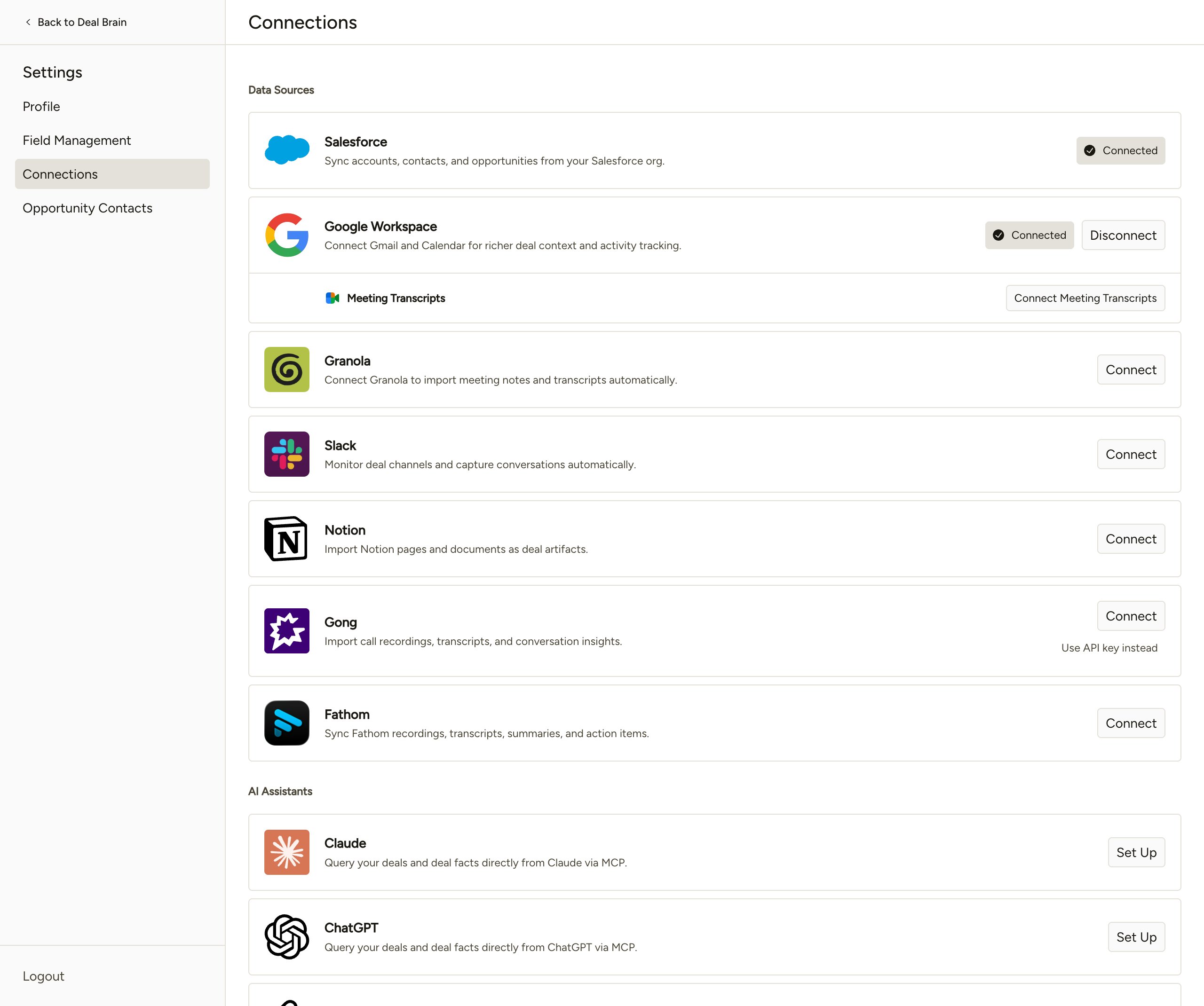
2
Authorize Tempo in Gong
You’ll be redirected to Gong’s consent screen. Review the requested scopes and click ALLOW.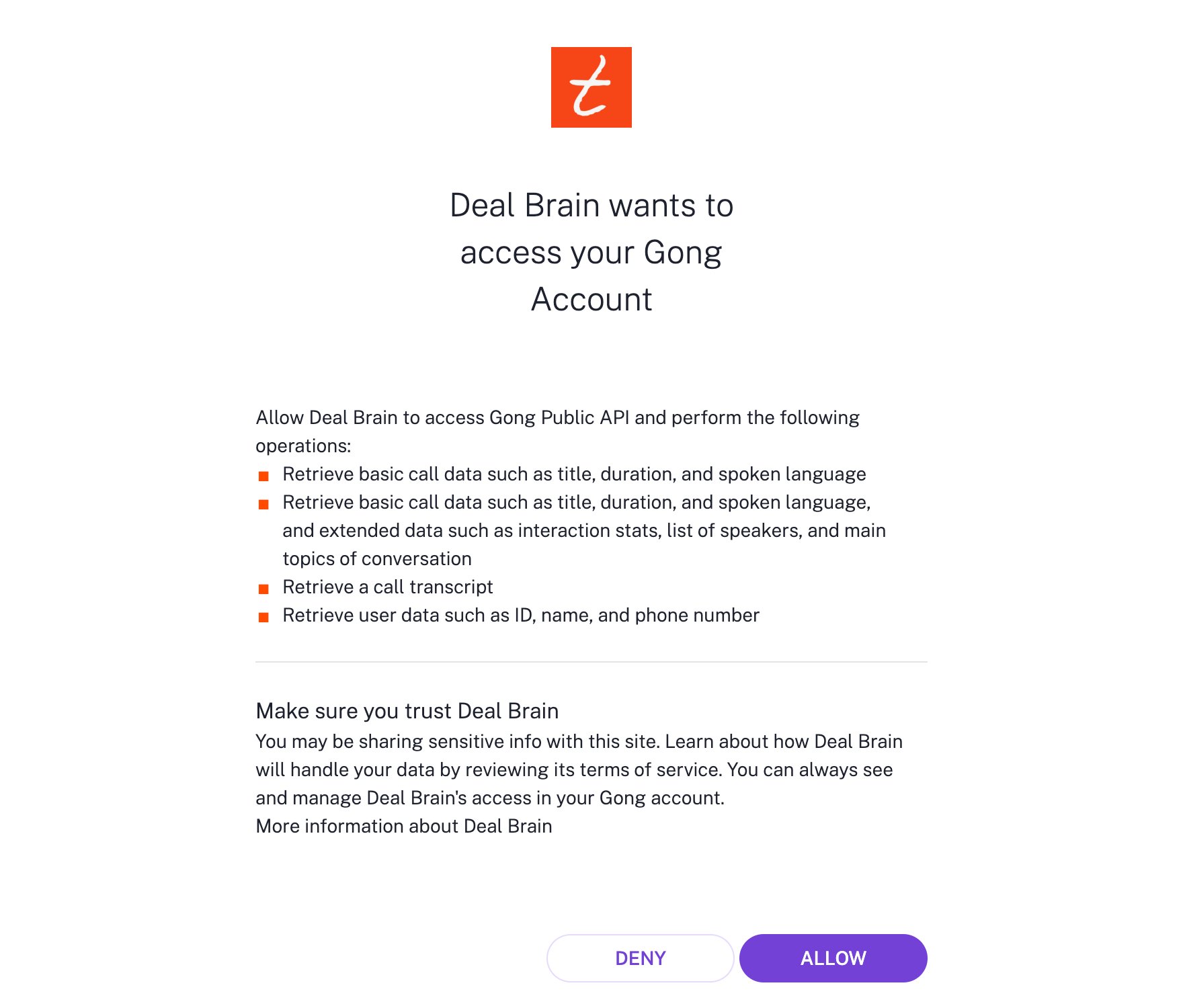
3
Confirm the connection
You’ll return to Tempo with Gong showing as connected. Initial sync runs in the background; calls and transcripts begin appearing within a few minutes.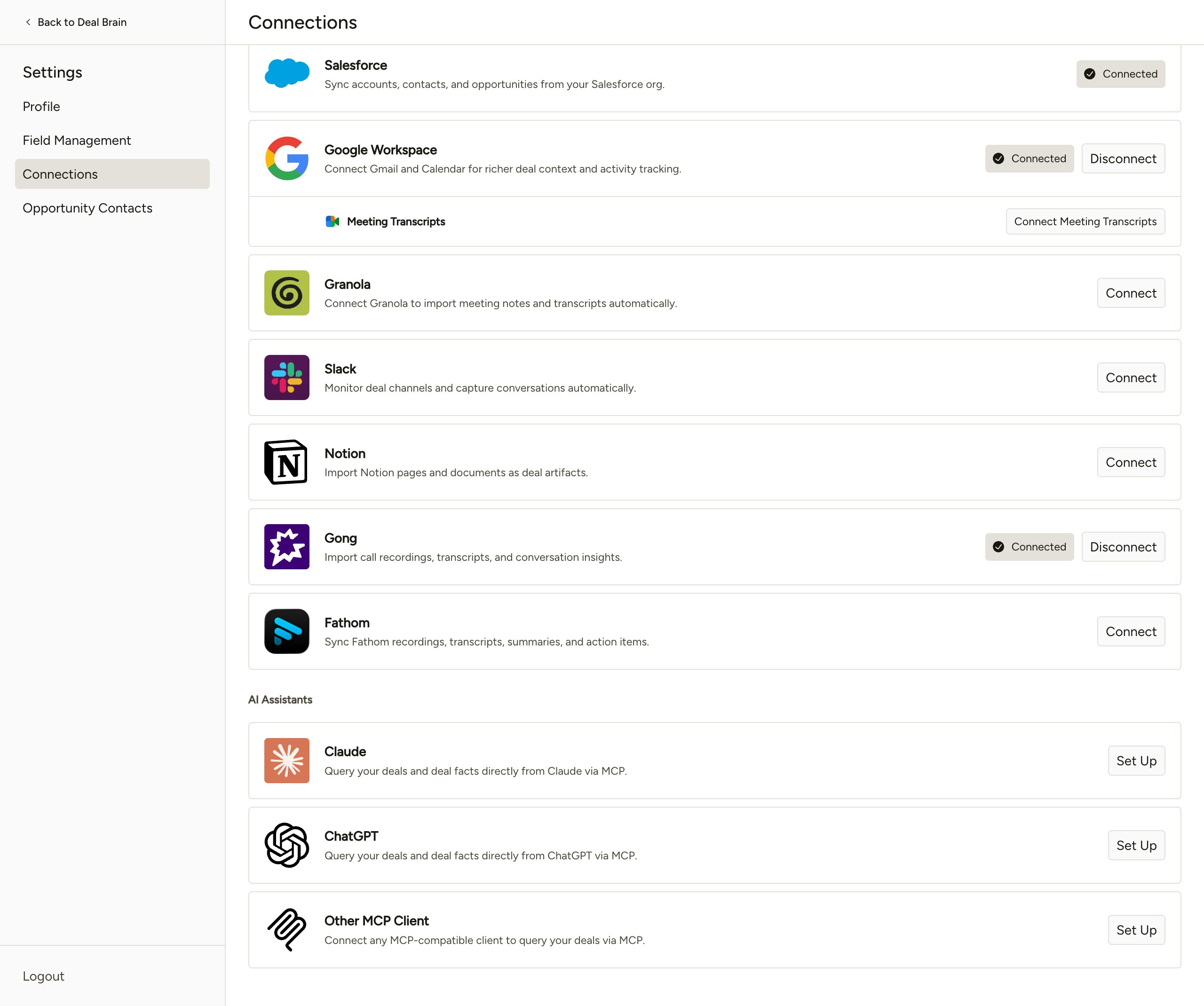
Connect via API key
A Gong Technical Administrator can also connect Tempo by generating an API key and pasting it into the connect dialog.This path requires the Technical Administrator role in Gong, since only Technical Administrators can generate API keys. If you don’t have that role, share this page with whoever manages your Gong workspace.
Generate the API key in Gong
1
Open Gong's API page
From the Tempo Gong connect dialog, click Open Gong API settings → to deeplink straight to the right page in Gong. Or open it manually at app.gong.io/company/api-authentication (Admin center → Settings → Ecosystem → API).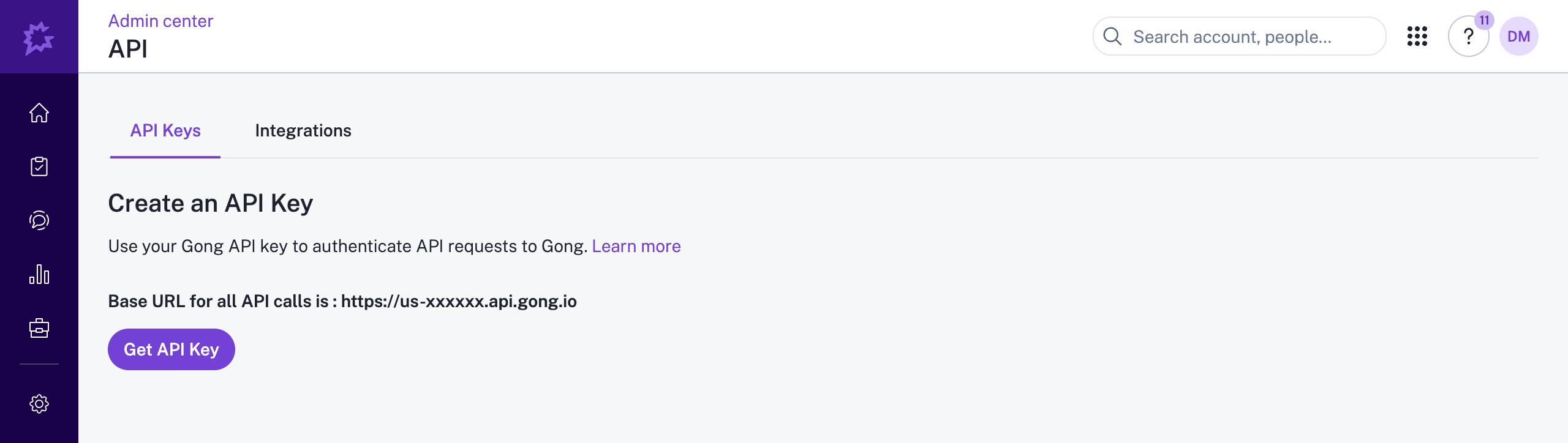
2
Generate the key
Click Get API Key. Gong displays your Access Key and Access Key Secret. Copy both somewhere safe before you close the dialog; Gong only shows the secret once.Also note the API Base URL displayed above the access key. It looks like 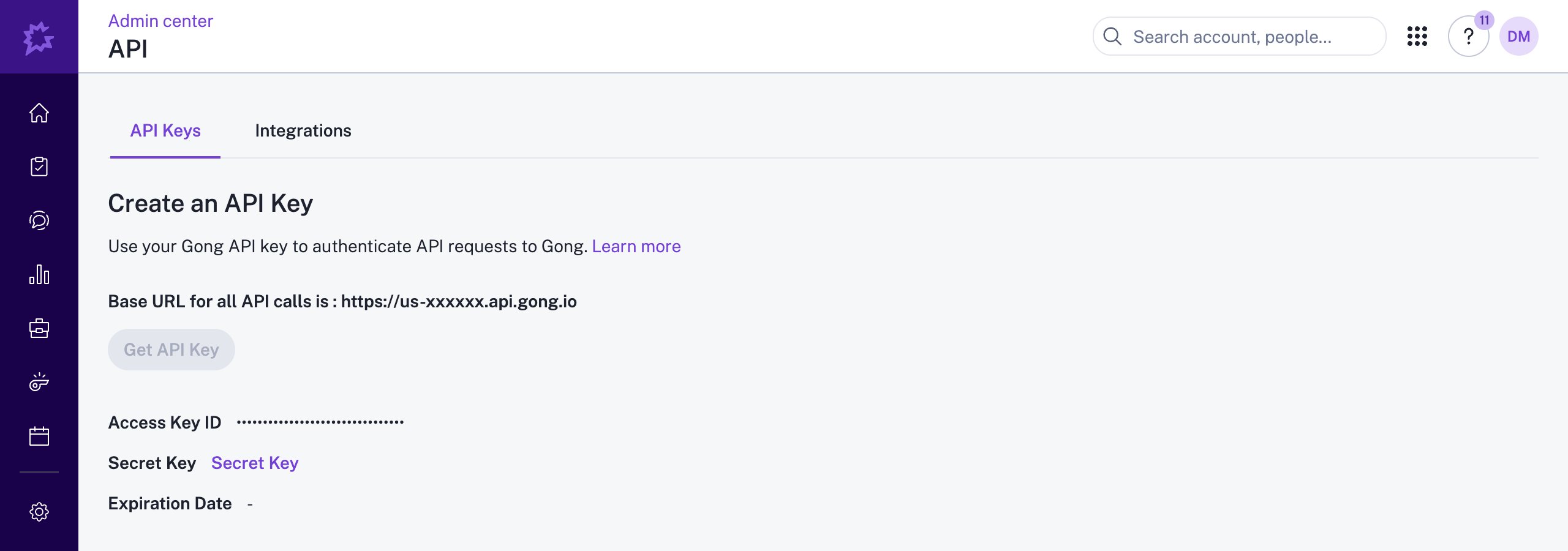
https://us-xxxxxx.api.gong.io and varies by Gong tenant.For Gong’s full documentation on this flow, see Gong’s help article.Connect Tempo to Gong
1
Open the Gong connect dialog
In Tempo, go to Settings → Connections and click Connect on the Gong row. The Connect Gong with API key dialog opens.
2
Paste the credentials
Paste the three values from Gong into the dialog, in this order: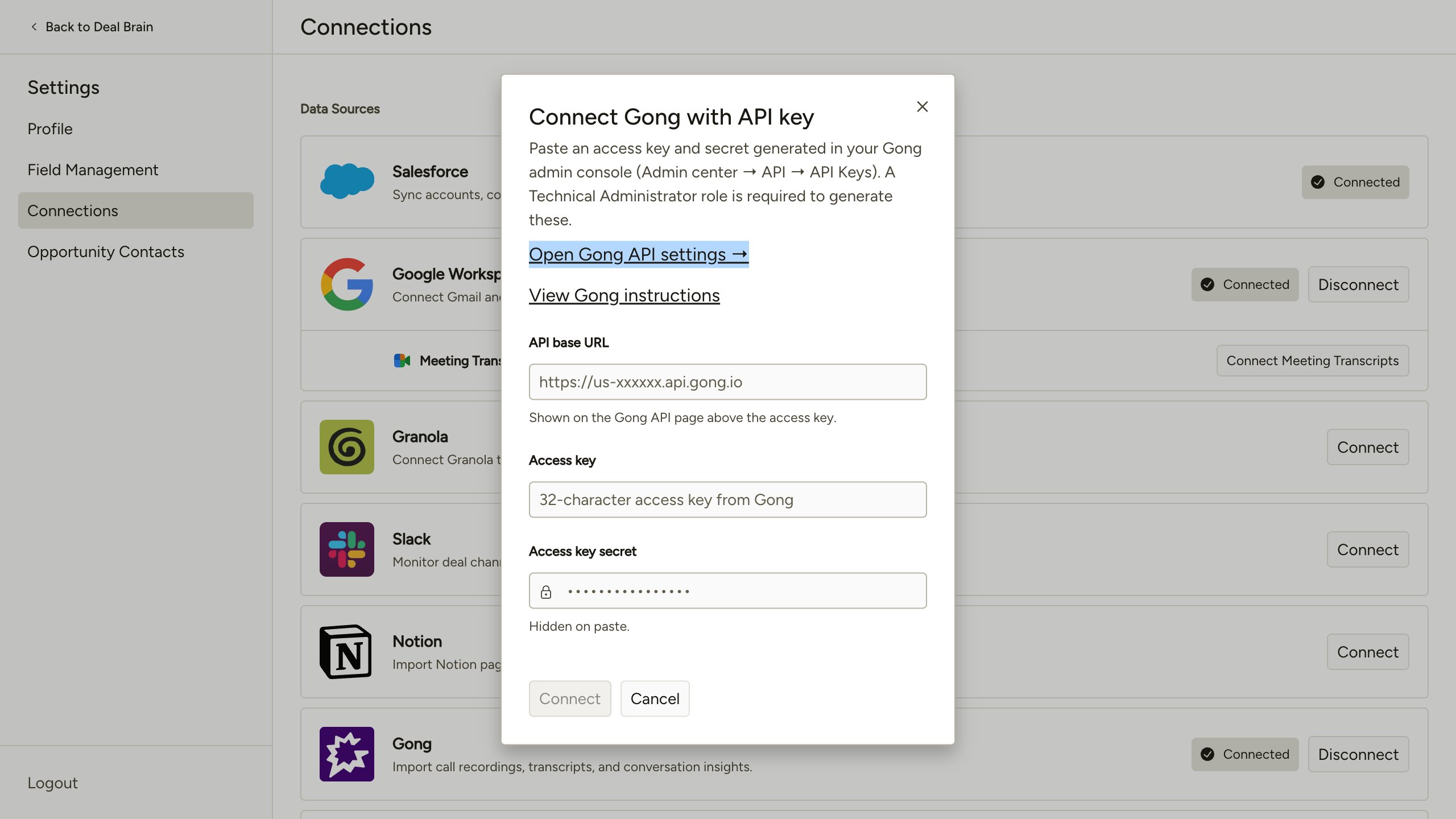
Click Connect.
3
Confirm the connection
Tempo validates the credentials against your Gong tenant and starts the initial sync. Calls and transcripts begin appearing within a few minutes.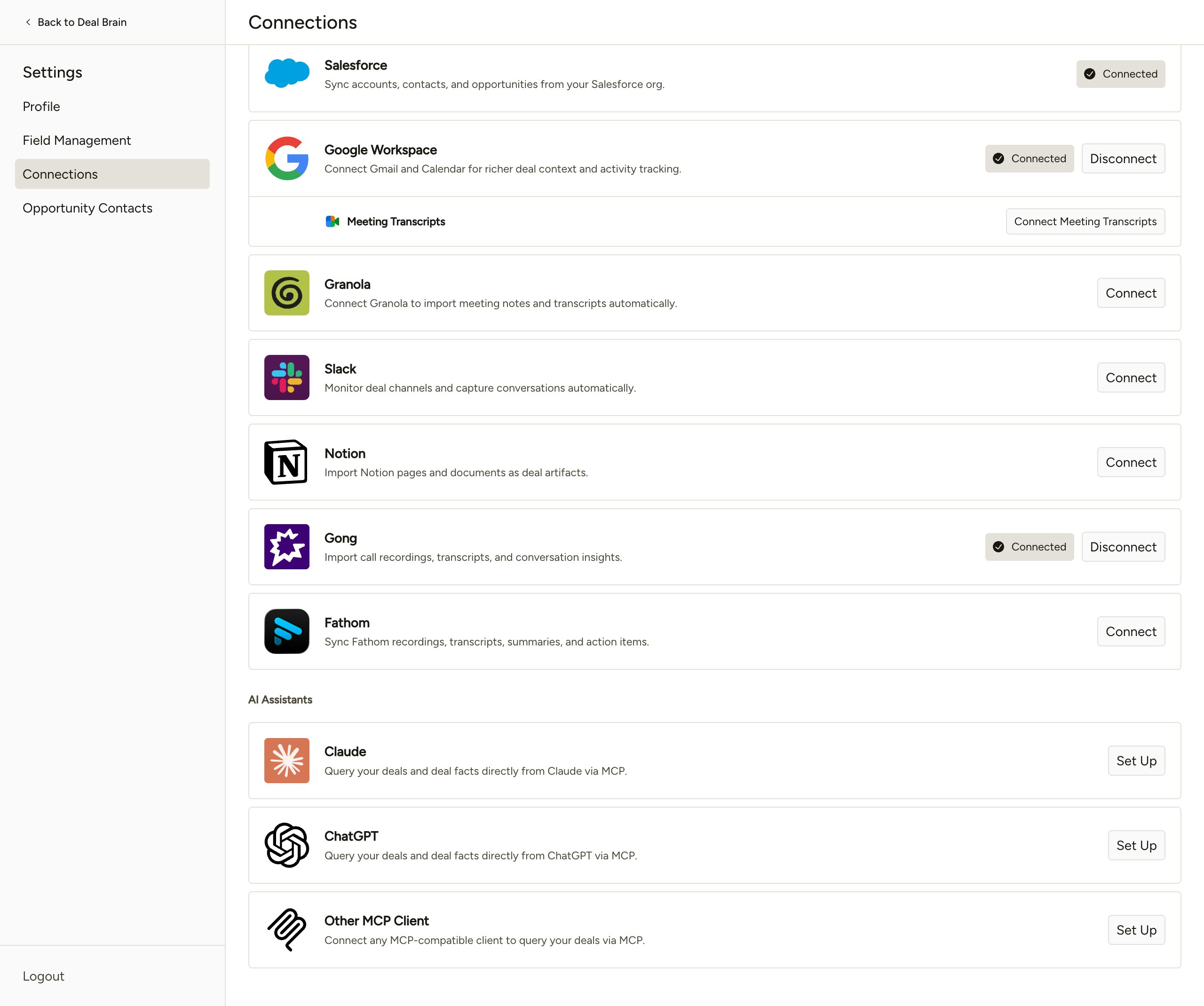
Treat the Access key secret like a password. Anyone with both the key and the secret can read everything in your Gong workspace via the Gong API. If the key is ever exposed, rotate it in Gong; Tempo will need the new credentials to maintain the connection.
Permissions
Tempo requests the following Gong API scopes:What we do with this access
- Pull call metadata (title, duration, direction, scheduled and started times, recording URL) and word-level transcripts with speaker attribution
- Extract Gong’s Spotlight AI content: brief summary, key points, highlights, call outcomes, action items, and outline sections
- Associate each call with the right Opportunity, Account, and Contacts in Tempo via the Salesforce associations Gong already maintains
- Enrich attendee records with names, emails, affiliations, and job titles where Gong has them
Known limitations
- Spotlight AI takes time to land. Gong typically generates Spotlight content within 10–30 minutes of a call ending, but it can take several hours for longer or higher-volume calls. Tempo backfills the AI content as soon as it appears.
- Calls under 30 seconds don’t get Spotlight content. Gong skips Spotlight processing for very short calls.
- Inbound telephony calls don’t get Spotlight content. Gong reserves Spotlight for video and outbound telephony calls.