

CSV import is point-in-time. Data won’t stay in sync the way a connected CRM does. You can re-run the export whenever you want to refresh, and you can connect a CRM later without losing anything.
What the file needs
Tempo reads your column headers and maps them to its fields automatically, so exact naming isn’t critical. What matters is that each row represents an opportunity, with its account and contact alongside. Your CSV must meet both limits:- File size: 10 MB or less
- Rows: 10,000 or fewer, including all opportunity–contact rows
If your export produces one row per opportunity–contact pair, opportunities with multiple contacts will appear on multiple rows. That’s expected — Tempo dedupes on import.
Export from Salesforce
1
Create a new report
In Salesforce, go to Reports → New Report and choose the Opportunities with Contact Roles report type. This is a built-in Salesforce report that joins each opportunity to its contacts in a single export.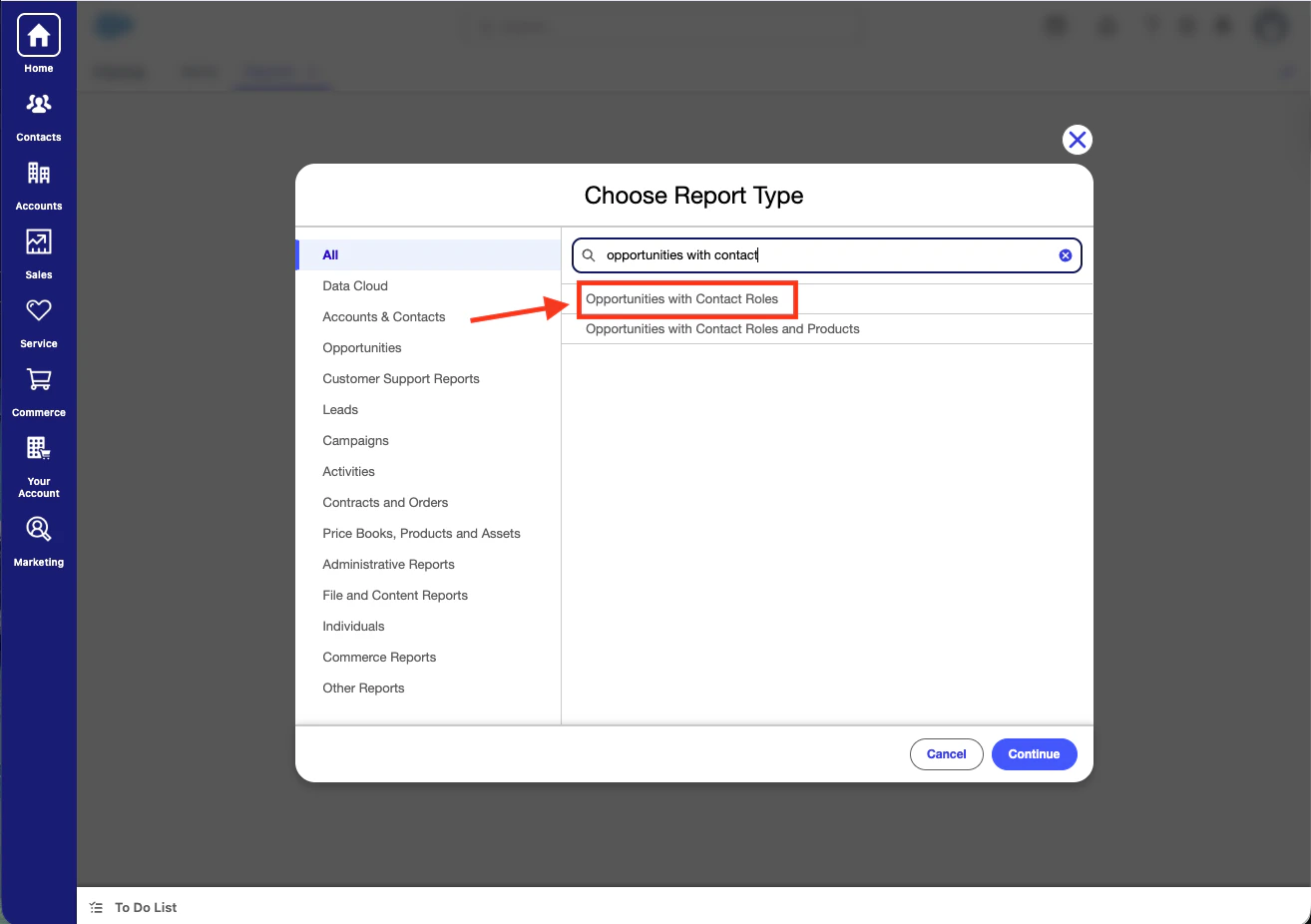
2
Add the columns Tempo needs
Click Edit in the top right and use the columns picker to add the opportunity fields you want to track and manage in Tempo. This report will act as the source for what Tempo knows about your book of business. Many of the fields automatically visible (e.g. mailing address) may not be useful for your deal management, so feel free to unselect these.
3
Check the filters
Open the Filters tab and confirm you’re getting the opportunities you expect. The default Close Date filter is often too restrictive and hides open deals — broaden it if your row count looks low.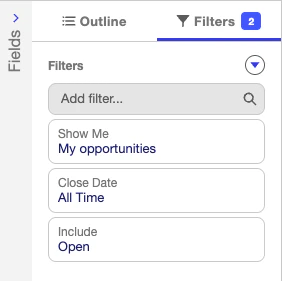
4
Save the report
Save the report inside Salesforce (e.g. Tempo Export) so you can re-run it later when you want to refresh your data.
5
Export as Details Only CSV
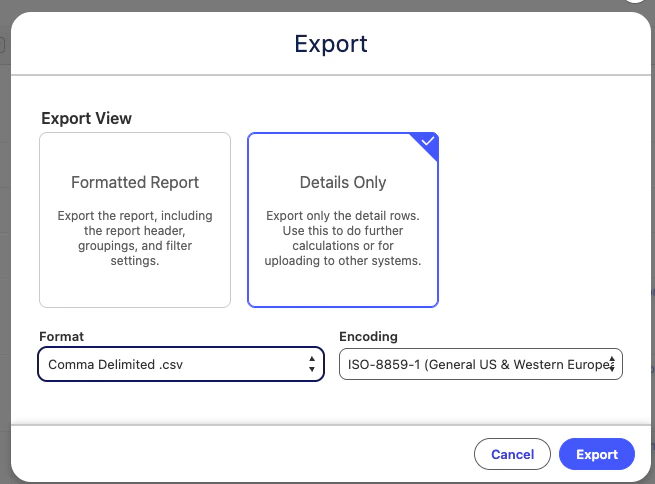
Click the down arrow next to Save and choose Export. Pick Details Only as the export view and Comma Delimited (.csv) as the format, then click Export.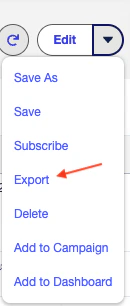
You need the Export Reports Salesforce permission to download the CSV. If the export option is missing, ask your Salesforce Admin to grant it.
Export from HubSpot
Export your deals from HubSpot with their associated companies and contacts included, as a comma-delimited.csv. Match the columns to the recommended set above.
Upload to Tempo
1
Choose the CSV path in onboarding
During Tempo onboarding, click Upload a CSV of your opportunities instead.
2
Drop in your CSV
Upload the file you exported. It must be 10 MB or less and contain no more than 10,000 rows. Tempo reads your column headers and maps them to its fields automatically.
3
Confirm and finish onboarding
Review the import preview, then confirm. Tempo will create your opportunities, dedupe contacts across rows, and continue you through the rest of the onboarding flow.
Troubleshoot a rejected file
- If the file is larger than 10 MB, remove unused columns or split the export.
- If the file has more than 10,000 rows, narrow the export by owner, stage, or date and import each result separately.
- If the row count looks unexpectedly high, check whether your export creates one row for every opportunity–contact pair.