

Open the page
In the sidebar, under Build, click Themes. Themes is available by default. See Availability. The toolbar shows Data through, the last day with observations grouped into themes, and Themes updated, when Tempo last updated your themes. Updated shows when the table on screen was computed, which can be up to six hours earlier. To recompute the table, click the refresh icon next to the time. If the same view was refreshed in the last minute, you see that result. If you see Couldn’t refresh Themes, the table keeps its previous results. Try again.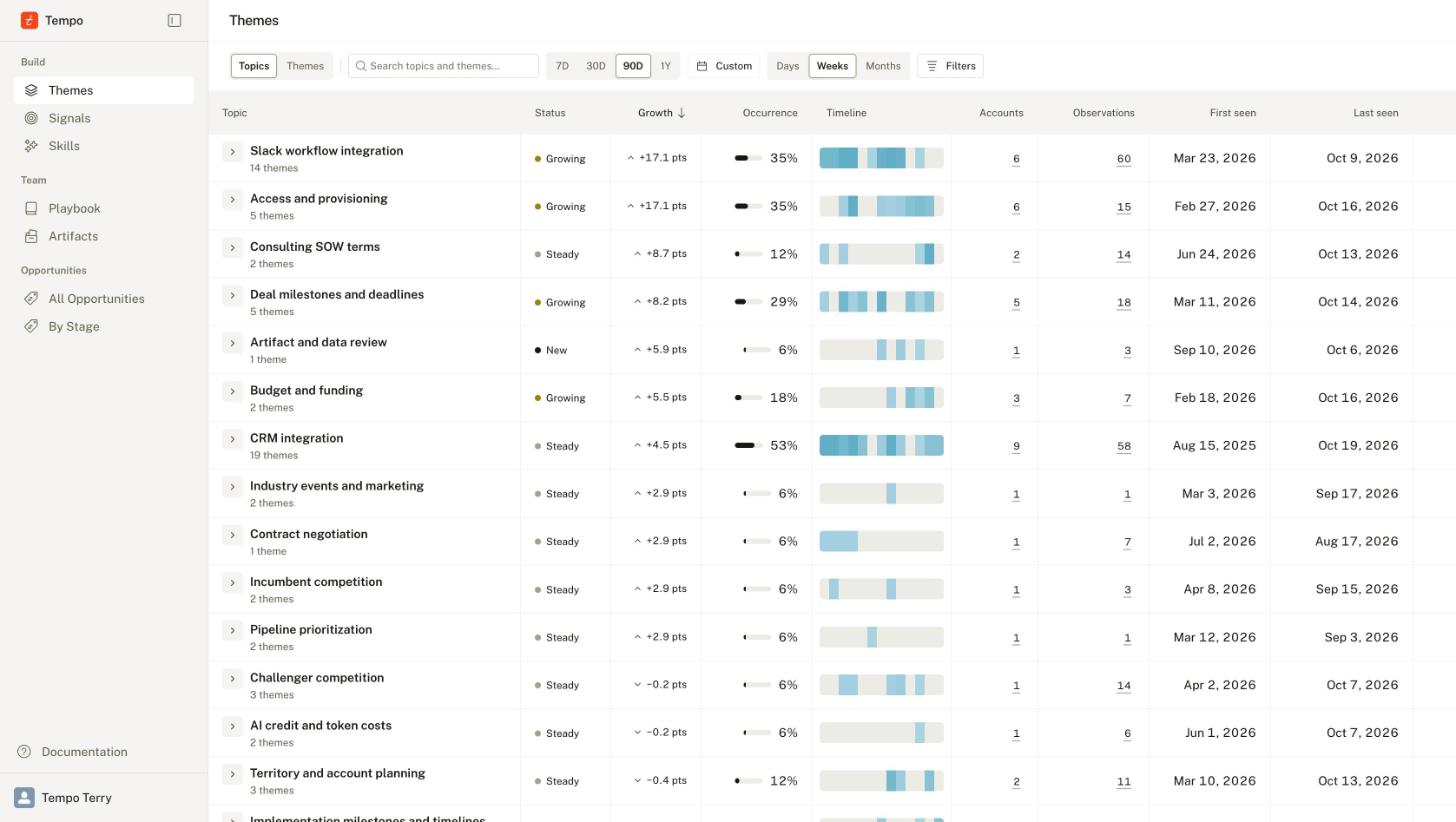
The Themes page grouped by topic: one row per topic with its status, growth, occurrence, weekly timeline, and counts for the last 90 days.
Group by topic or theme
When topic grouping is on, a Topics | Themes toggle sits at the top of the page.- Topics shows one row per topic. Click the chevron on a topic row to expand its themes. The No topic yet row holds themes that do not belong to a topic and is always last.
- Themes shows one row per theme. The Topic column names its topic. Click a topic to switch to Topics with that topic expanded.
Search
Type into the search field to rank topics or themes by relevance to your words. While a search is active, the rows are ordered by relevance and the sort controls are disabled. Clear the search to return to the sorted timeline.Choose a period
Click the period button, for example Last 90 Days, to choose how far back to look. The table shows counts, status, and growth for this period. Status and growth compare it with the equal period just before it. First seen, Last seen, history totals, and Appears with use a longer range ending on the period’s last day. This range covers the last 90 days, or the selected period and the previous period if those span more than 90 days. These values count all sources, whatever you select in Sources. A theme marked New may have appeared before that range.
To use a custom period, click a start date and then an end date in the calendar. The range can be at most 366 days.
For periods of 14 days or more, use Days, Weeks, or Months to set the timeline granularity. Days is available for periods up to 31 days. Months is available for periods of 60 days or more.
Tempo starts with Days for periods up to 31 days, Weeks for 32 to 179 days, and Months for 180 days or more.
Filter
Click Filters to open the filter panel. The button shows how many filters are active.
The seller and account lists include only deals you can open. Active filters appear as chips above the table. Remove a chip to clear one filter, or click Clear all.
To show one observation type, point to its row in Types and click Only.
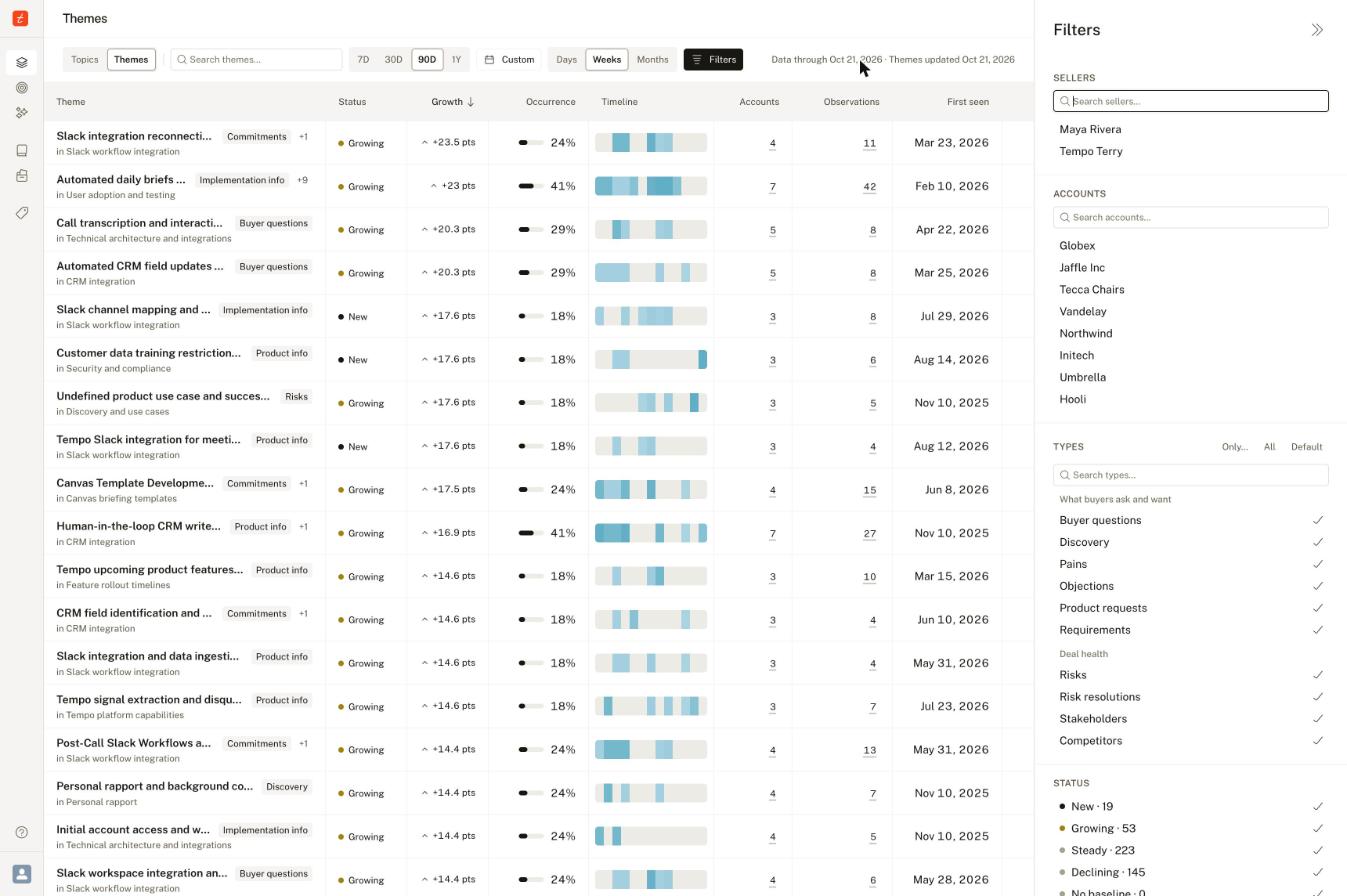
The Filters panel: Sellers, Accounts, and Types grouped by family. Account names shown are placeholders.
Narrow an observation type
Use a type’s detail filters to focus on questions customers ask or objections your team has not handled. Selected types with predefined choices show an arrow beside their name in Types.1
Select a type
Select Questions under Types in the Filters panel.
2
Open its choices
Click the arrow beside Questions.
3
Choose a value
Click Customer to include only questions asked by customers.
Read the timeline table
Each row shows Theme (or Topic), Category, Status, Growth, Occurrence, Timeline, Accounts, Observations, First seen, and Last seen. In Topics, a Themes column shows how many themes each topic contains. Rows sort by Growth, highest first, until you change the sort.- The Timeline column shows activity across the selected period in one compact strip.
- Click a sortable column header to sort by that column.
- Right-click a column header to filter on that column, for example occurrence above a value or first seen after a date. One filter applies per column. The Topic and Timeline columns have no filter.
- The table shows 50 rows per page. Use Previous and Next to page.
Open a theme
Click a theme name to open it in a slide-over panel. The header shows its topic, type badges, status, name, and description. The panel has three tabs.Overview
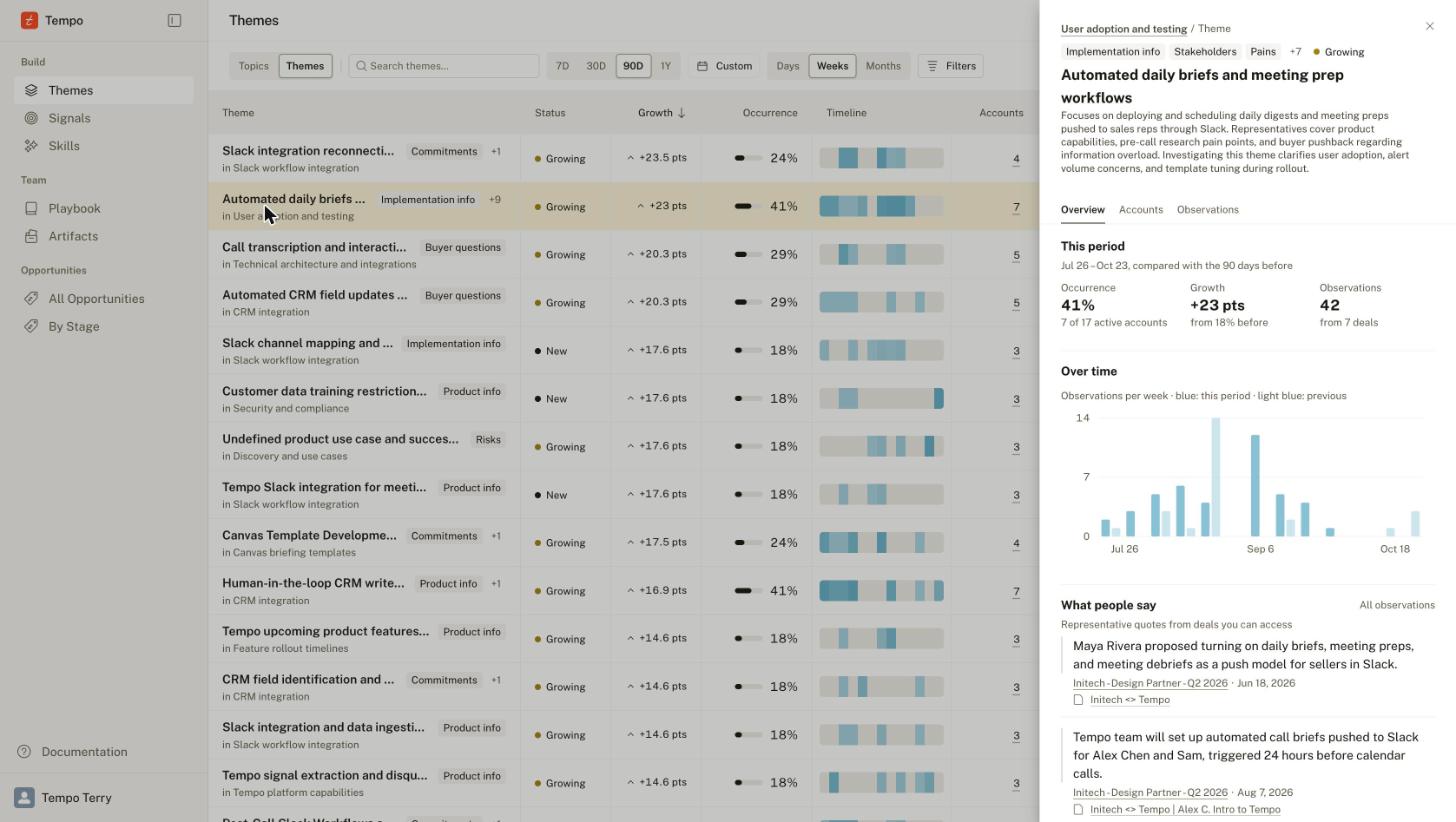
A theme's Overview tab: This period, Over time, and What people say, with each quote linked to its deal and source. Names shown are placeholders.