

Setup
1
Open Claude settings
Click your profile icon in the bottom-left corner of Claude, then select Settings.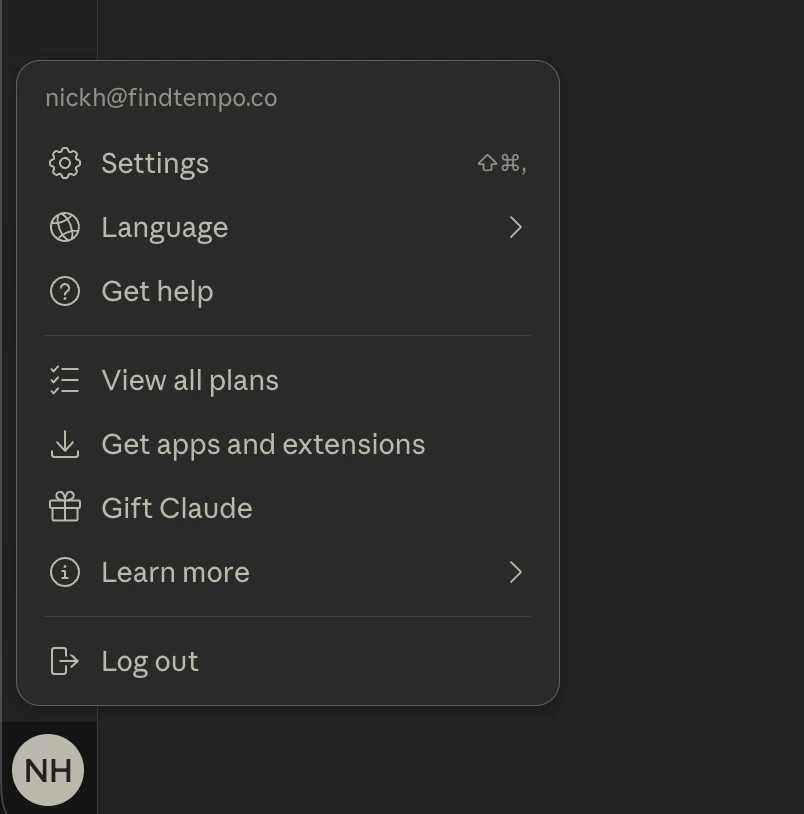
2
Navigate to Connectors
In the settings sidebar, click Connectors.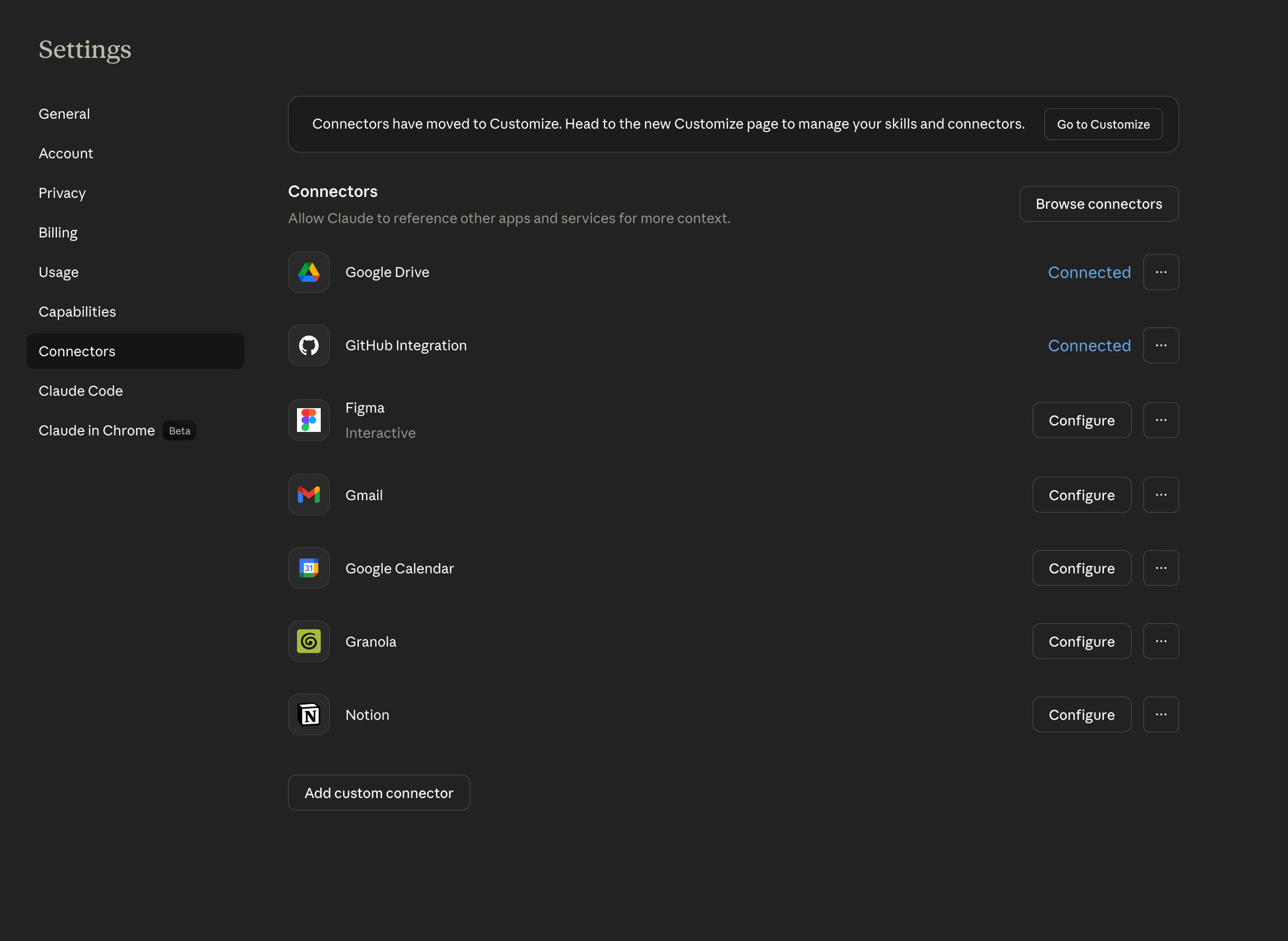
3
Add a custom connector
Scroll to the bottom of the connectors list and click Add custom connector.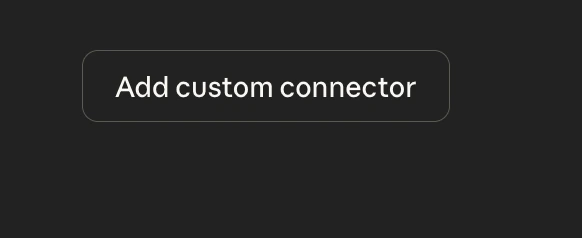
4
Enter the connection details
Fill in the following fields: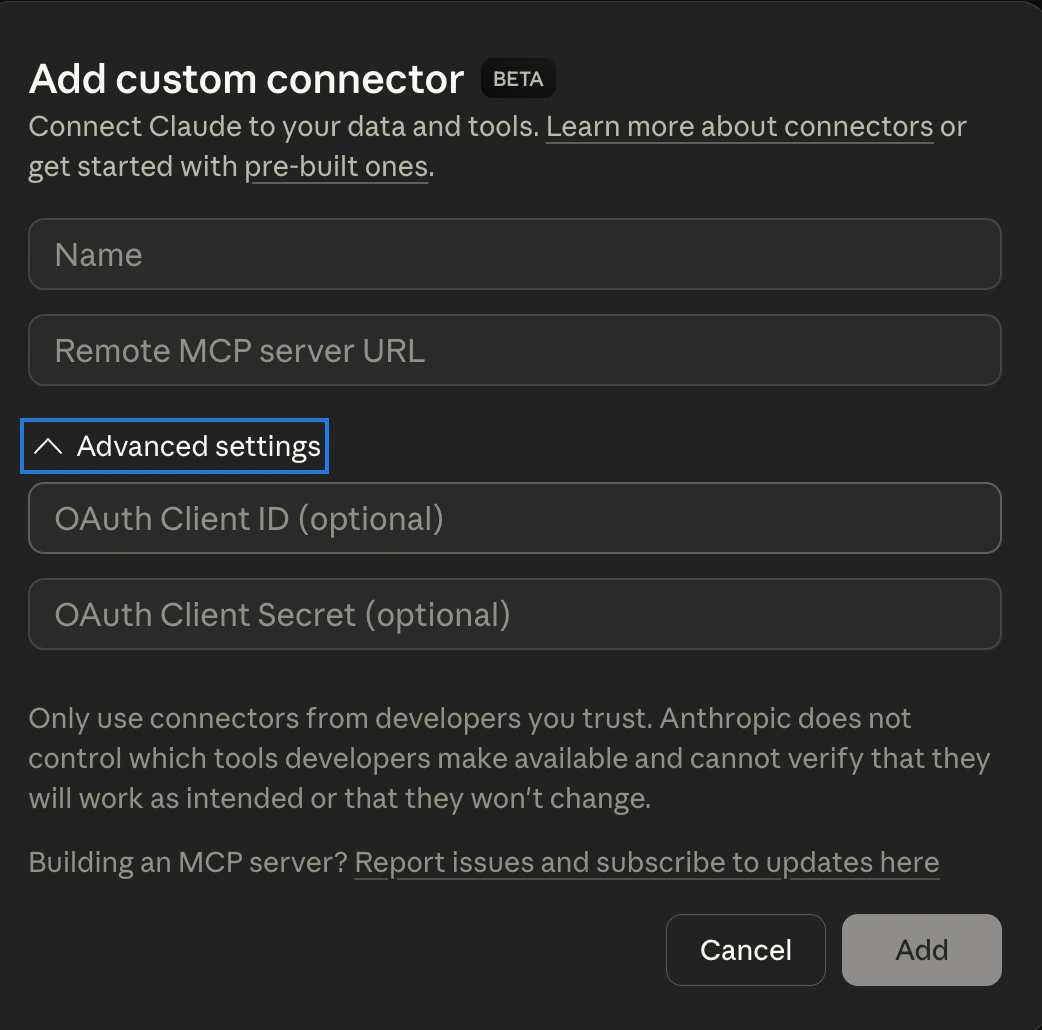
You can copy these values directly from the Connections page in your Tempo settings.
5
Authenticate
Click Add. Claude will open a browser window to authenticate with your Tempo account. Sign in with your usual credentials.
6
Start using Tempo in Claude
Once connected, you can ask Claude about your deals. Try prompts like:
- “What are my open deals?”
- “What did I promise we’d cover in my last meeting with Acme Corp?”
- “What are the key risks with Jaffle Inc?”