> ## Documentation Index
> Fetch the complete documentation index at: https://docs.findtempo.co/llms.txt
> Use this file to discover all available pages before exploring further.
# Salesforce
> Connect Salesforce as your system of record so Deal Brain keeps deal context and CRM data reconciled.
Deal Brain connects to Salesforce as your system of record, keeping deal context and CRM data reconciled in both directions.
Salesforce connects as a **Connected App**. A Salesforce Admin must approve the integration before users can authenticate.
Not using Salesforce? Deal Brain also connects to [HubSpot](/integrations/hubspot), or you can [import a CSV](/integrations/csv-import) of your opportunities.
## Common errors
If you see any of the following errors when attempting to log in, access has not yet been granted by your Salesforce Admin:
* `OAuth App Blocked`
* `OAuth Error`
* `OAUTH_APPROVAL_ERROR_GENERIC`
To resolve this, work with your Salesforce Administrator or Operations team to complete the steps below.
## Admin approval flow
In Salesforce, go to **Setup → Apps → Connected Apps → Connected Apps OAuth Usage**, find **Deal Brain**, and click **Install**.
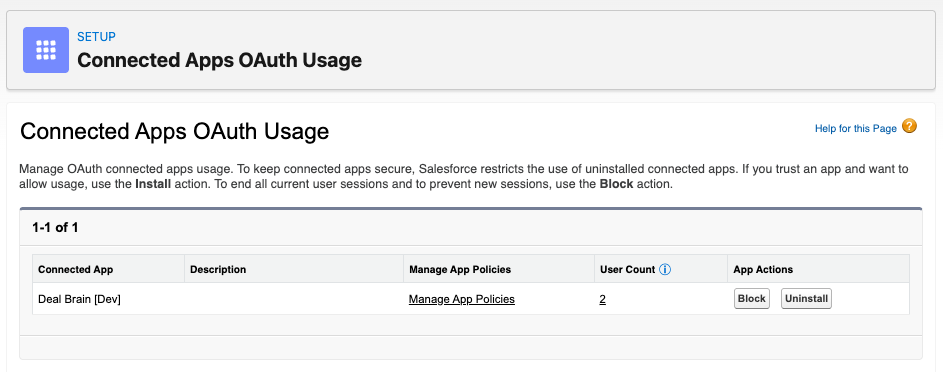 Once installed, click **Manage App Policies** and ensure **Permitted Users** is set to **All users may self-authorize** (default).
 Check the **Refresh Token Policy** while you're here. If it's set to **immediately expire** or to a very short window (e.g. one day), users will be forced to re-authenticate frequently and may see connection errors. We recommend setting it to **expire if not used for 14 days** or longer.
After policies are updated, users can log back into Deal Brain and re-authenticate with Salesforce successfully.
## Permissions
Deal Brain requests the following OAuth scopes:
| Scope | Purpose |
| ---------------- | --------------------------------------------------- |
| `email` | Identify the authenticated user |
| `openid` | Identify the authenticated user |
| `profile` | Identify the authenticated user |
| `api` | Read and write Salesforce data |
| `offline_access` | Maintain access without requiring re-authentication |
### What we do with these permissions
* Query and sync field definitions for Accounts, Contacts, and Opportunities
* Sync a subset of Opportunities and field values (selected by the user during onboarding)
* For that subset of Opportunities, sync related Account and Contact objects
* Write Opportunity field values back to Salesforce when a user edits them
## Not ready to connect?
If you can't get Admin approval right away, you can [import a CSV](/integrations/csv-import) of your opportunities and connect Salesforce later without losing anything.
Check the **Refresh Token Policy** while you're here. If it's set to **immediately expire** or to a very short window (e.g. one day), users will be forced to re-authenticate frequently and may see connection errors. We recommend setting it to **expire if not used for 14 days** or longer.
After policies are updated, users can log back into Deal Brain and re-authenticate with Salesforce successfully.
## Permissions
Deal Brain requests the following OAuth scopes:
| Scope | Purpose |
| ---------------- | --------------------------------------------------- |
| `email` | Identify the authenticated user |
| `openid` | Identify the authenticated user |
| `profile` | Identify the authenticated user |
| `api` | Read and write Salesforce data |
| `offline_access` | Maintain access without requiring re-authentication |
### What we do with these permissions
* Query and sync field definitions for Accounts, Contacts, and Opportunities
* Sync a subset of Opportunities and field values (selected by the user during onboarding)
* For that subset of Opportunities, sync related Account and Contact objects
* Write Opportunity field values back to Salesforce when a user edits them
## Not ready to connect?
If you can't get Admin approval right away, you can [import a CSV](/integrations/csv-import) of your opportunities and connect Salesforce later without losing anything.