> ## Documentation Index
> Fetch the complete documentation index at: https://docs.findtempo.co/llms.txt
> Use this file to discover all available pages before exploring further.
# Gong
> Connect Gong to bring call recordings, transcripts, and Spotlight AI insights into Deal Brain.
Connecting Gong gives Deal Brain ground truth from your customer calls: the exact words, who said them, and the AI-extracted highlights that matter. Deal Brain associates each call with the right Opportunity, Account, and Contacts so transcripts and insights show up wherever you work the deal.
## How it works
Deal Brain reads from Gong over the Gong API. After you connect, Deal Brain pulls call metadata, word-level transcripts, attendees, and Gong's Spotlight AI content (brief, key points, highlights, call outcomes, action items) for the calls in scope. CRM associations Gong already maintains (Salesforce Opportunities, Accounts, and Contacts) flow through alongside each call.
This is a one-way sync. Deal Brain reads from Gong; nothing is written back.
## Choose how to connect
There are two ways to connect Gong. Both connect a single Deal Brain user to Gong today; the difference is how that user authorizes Deal Brain.
**Authorize through Gong.** Click Connect, approve Deal Brain on Gong's consent screen, and you're done. May require Gong admin approval first.
**Authorize with an API key.** A Gong Technical Administrator generates an API key and pastes it into Deal Brain.
## Connect via OAuth
**A Gong admin may need to approve Deal Brain for your workspace first.** If the consent screen errors out or bounces you back without connecting, approval hasn't happened yet — share this page with whoever manages your Gong workspace, or use [Connect via API key](#connect-via-api-key) instead.
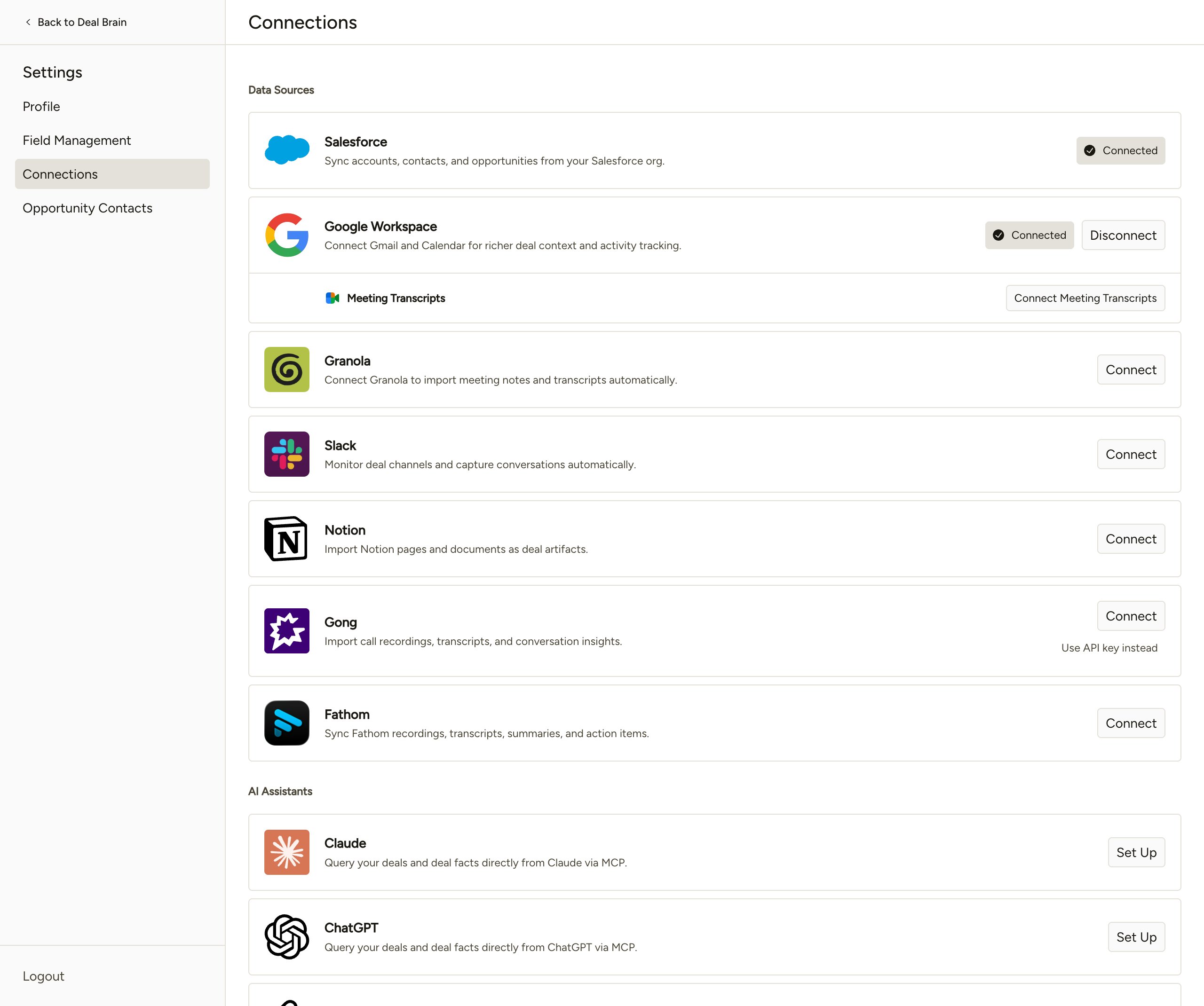
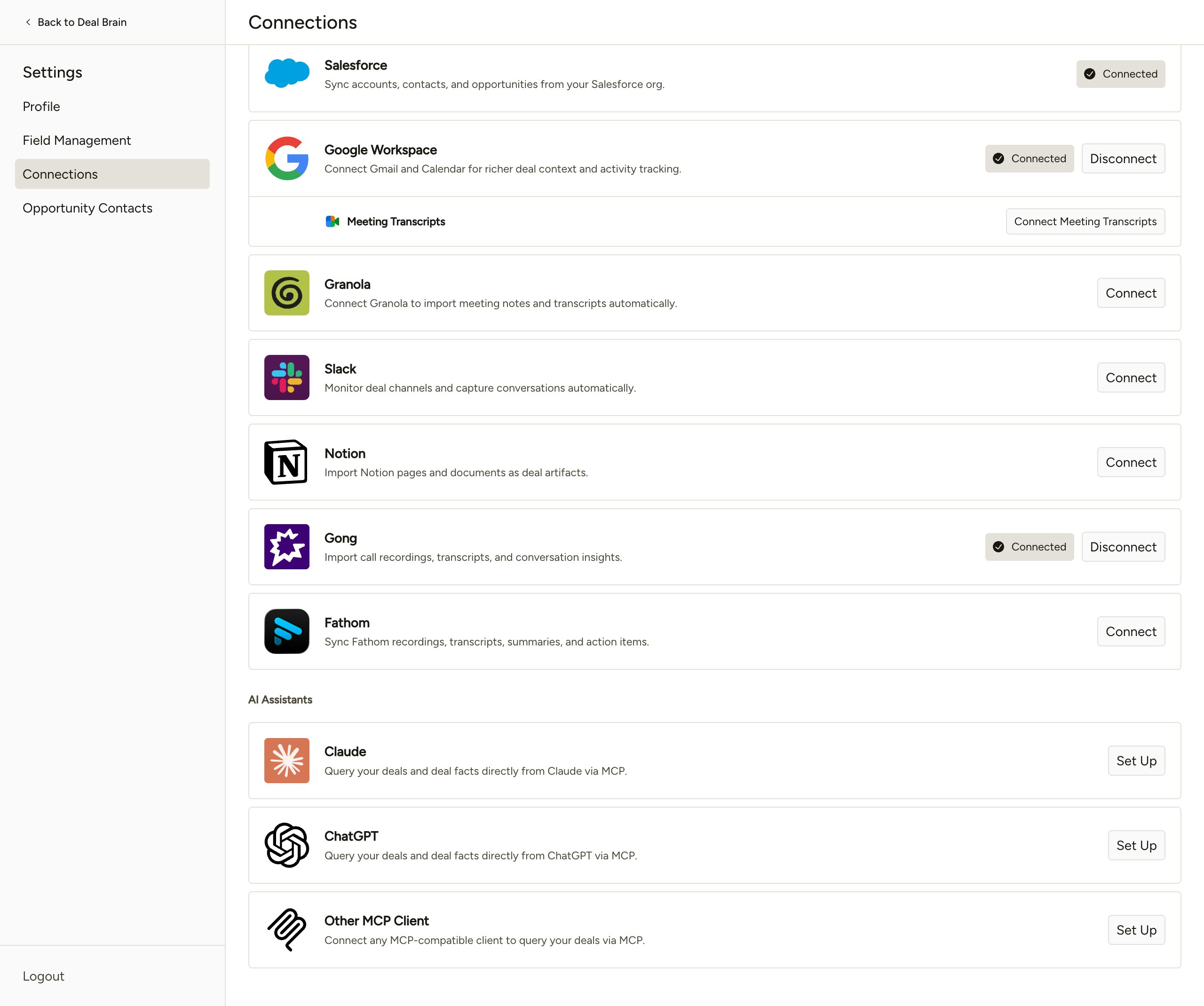
Go to **Settings → Connections** and click **Connect** next to Gong.
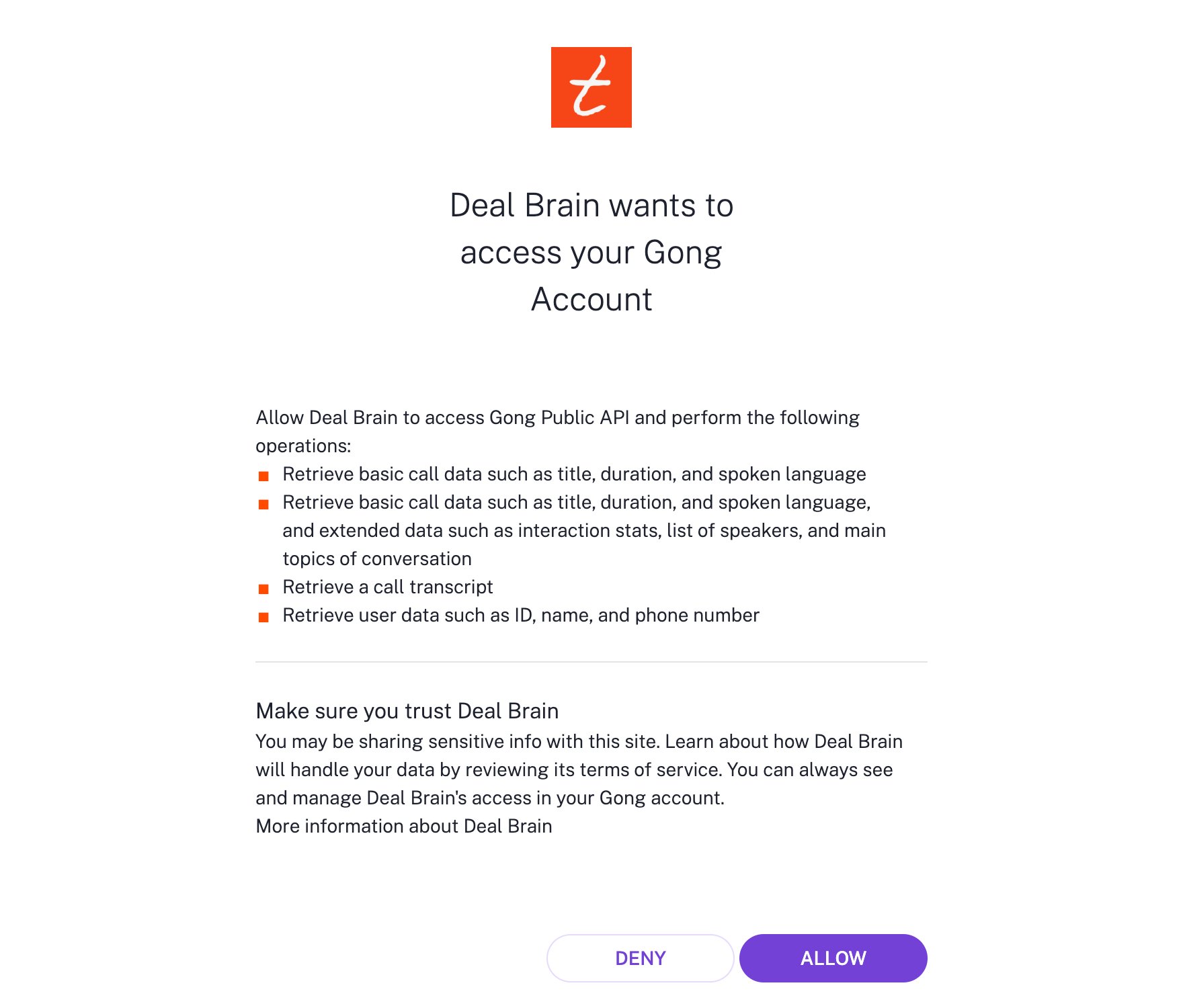
 You'll be redirected to Gong's consent screen. Review the requested scopes and click **ALLOW**.
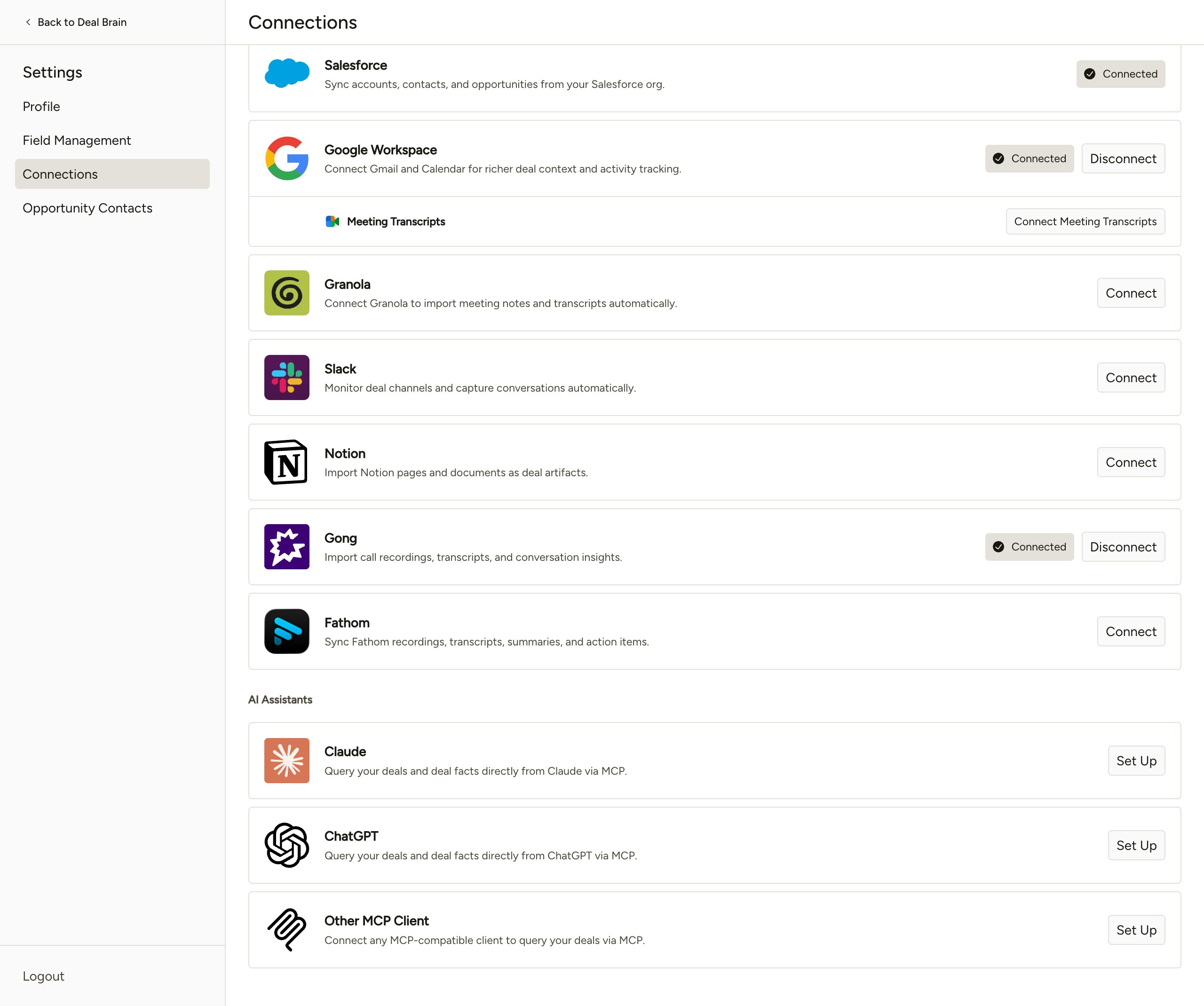
 You'll return to Deal Brain with Gong showing as connected. Initial sync runs in the background; calls and transcripts begin appearing within a few minutes.
 ## Connect via API key
A Gong **Technical Administrator** can also connect Deal Brain by generating an API key and pasting it into the connect dialog.
This path requires the **Technical Administrator** role in Gong, since only Technical Administrators can generate API keys. If you don't have that role, share this page with whoever manages your Gong workspace.
### Generate the API key in Gong
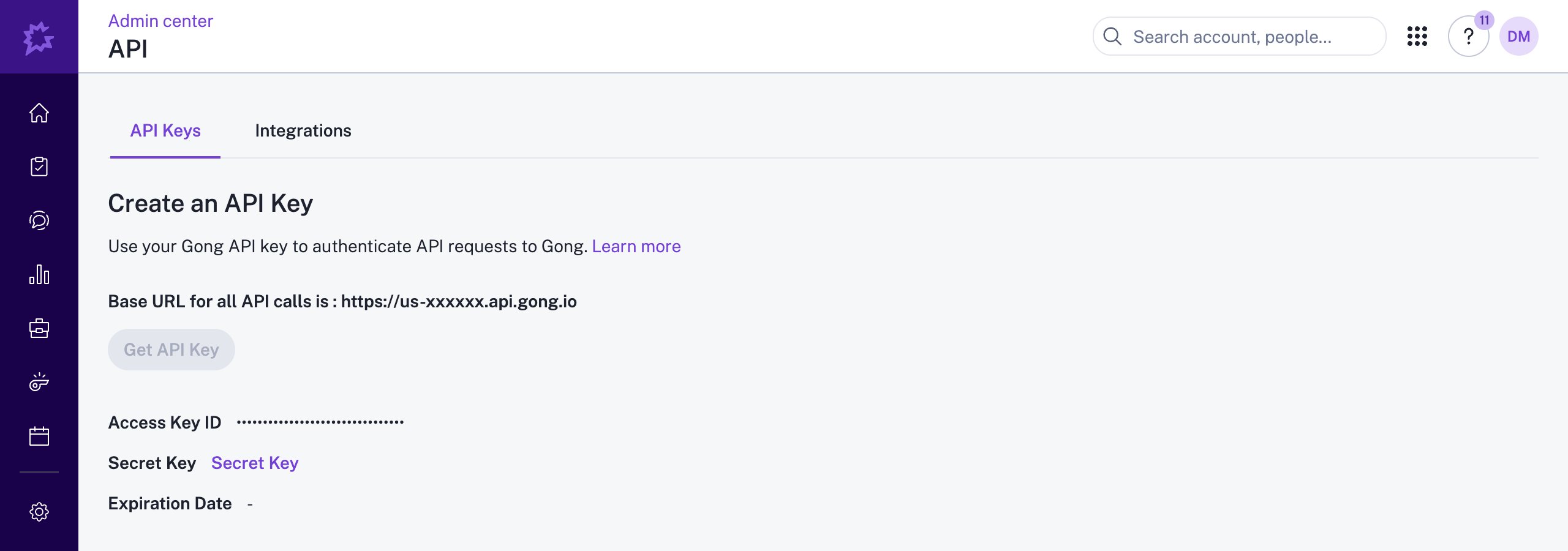
From the Deal Brain Gong connect dialog, click **Open Gong API settings →** to deeplink straight to the right page in Gong. Or open it manually at [app.gong.io/company/api-authentication](https://app.gong.io/company/api-authentication) (Admin center → Settings → Ecosystem → API).
## Connect via API key
A Gong **Technical Administrator** can also connect Deal Brain by generating an API key and pasting it into the connect dialog.
This path requires the **Technical Administrator** role in Gong, since only Technical Administrators can generate API keys. If you don't have that role, share this page with whoever manages your Gong workspace.
### Generate the API key in Gong
From the Deal Brain Gong connect dialog, click **Open Gong API settings →** to deeplink straight to the right page in Gong. Or open it manually at [app.gong.io/company/api-authentication](https://app.gong.io/company/api-authentication) (Admin center → Settings → Ecosystem → API).
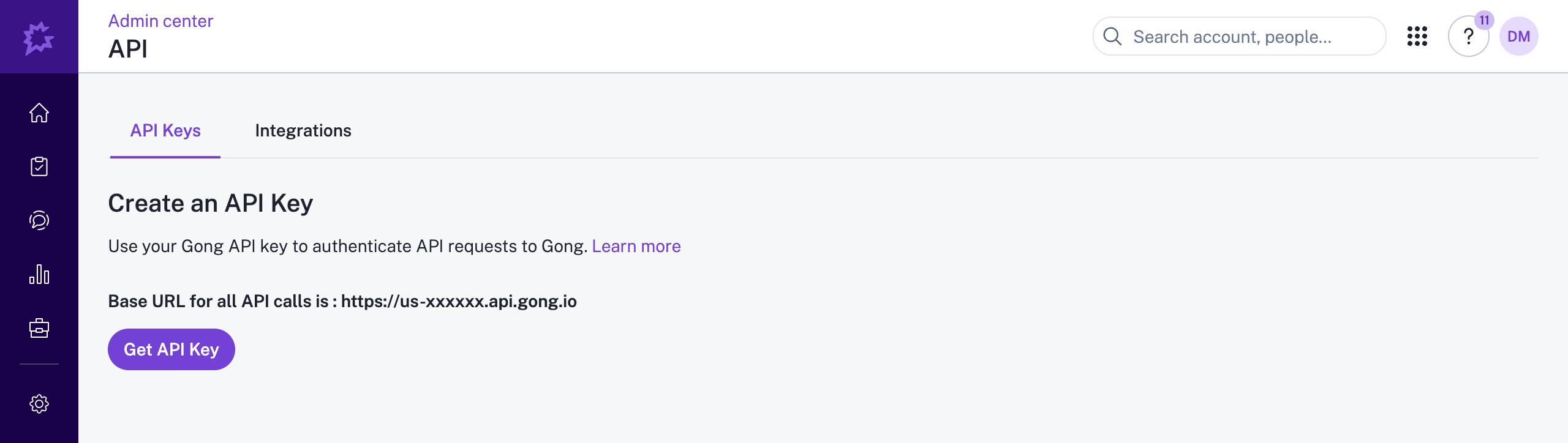 Click **Get API Key**. Gong displays your **Access Key** and **Access Key Secret**. Copy both somewhere safe before you close the dialog; Gong only shows the secret once.
Also note the **API Base URL** displayed above the access key. It looks like `https://us-xxxxxx.api.gong.io` and varies by Gong tenant.
For Gong's full documentation on this flow, see [Gong's help article](https://help.gong.io/docs/receive-access-to-the-api#generate-an-api-key).
Click **Get API Key**. Gong displays your **Access Key** and **Access Key Secret**. Copy both somewhere safe before you close the dialog; Gong only shows the secret once.
Also note the **API Base URL** displayed above the access key. It looks like `https://us-xxxxxx.api.gong.io` and varies by Gong tenant.
For Gong's full documentation on this flow, see [Gong's help article](https://help.gong.io/docs/receive-access-to-the-api#generate-an-api-key).
 ### Connect Deal Brain to Gong
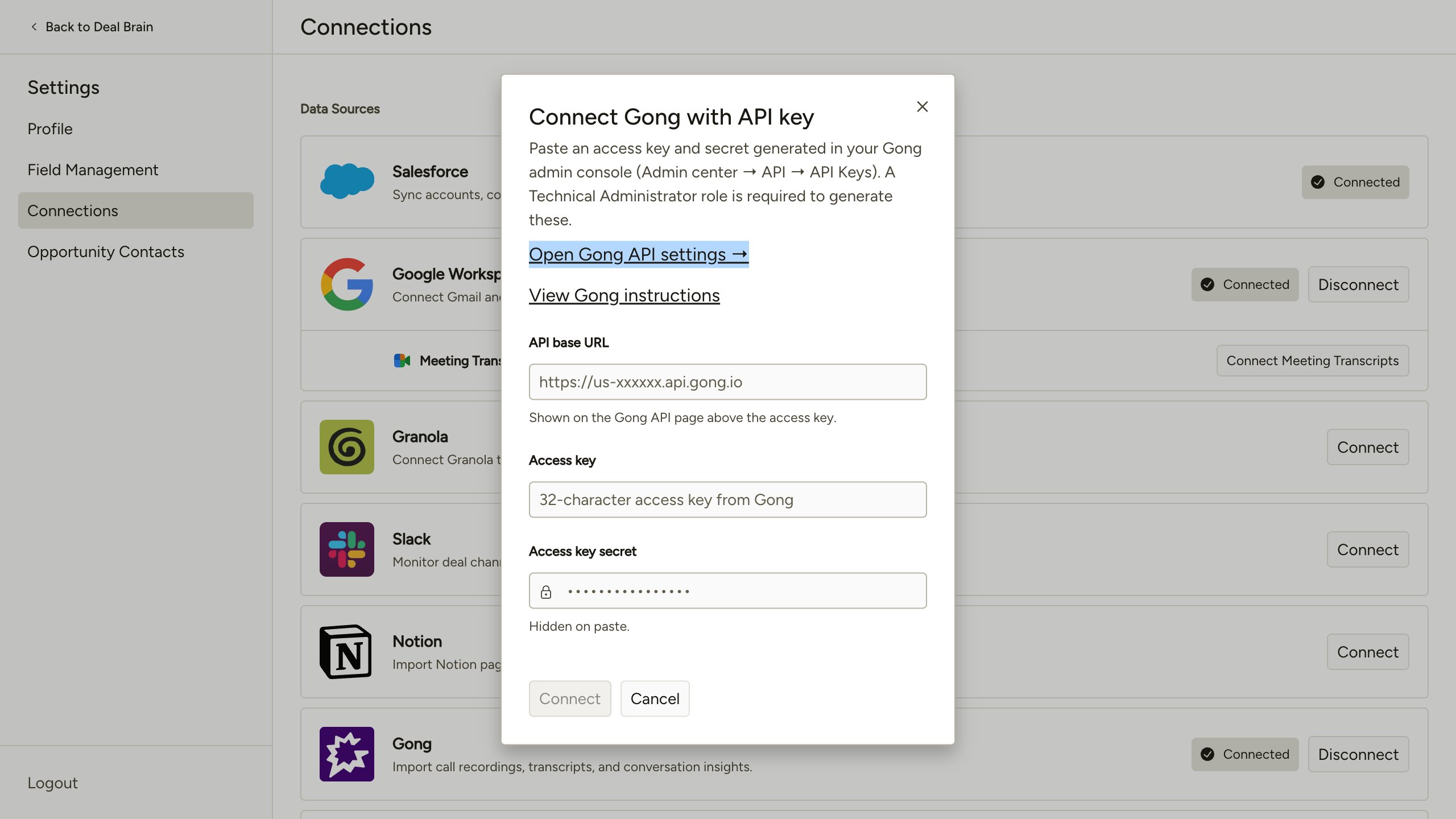
In Deal Brain, go to **Settings → Connections** and click **Use API key instead** on the Gong row. The **Connect Gong with API key** dialog opens.
Paste the three values from Gong into the dialog, in this order:
| Field | Value from Gong |
| --------------------- | ---------------------------------------------------------------------------------------- |
| **API base URL** | The host shown above the access key on Gong's API page (`https://us-xxxxxx.api.gong.io`) |
| **Access key** | The 32-character access key |
| **Access key secret** | The secret half of the key (hidden on paste) |
Click **Connect**.
### Connect Deal Brain to Gong
In Deal Brain, go to **Settings → Connections** and click **Use API key instead** on the Gong row. The **Connect Gong with API key** dialog opens.
Paste the three values from Gong into the dialog, in this order:
| Field | Value from Gong |
| --------------------- | ---------------------------------------------------------------------------------------- |
| **API base URL** | The host shown above the access key on Gong's API page (`https://us-xxxxxx.api.gong.io`) |
| **Access key** | The 32-character access key |
| **Access key secret** | The secret half of the key (hidden on paste) |
Click **Connect**.
 Deal Brain validates the credentials against your Gong tenant and starts the initial sync. Calls and transcripts begin appearing within a few minutes.
 Treat the **Access key secret** like a password. Anyone with both the key and the secret can read everything in your Gong workspace via the Gong API. If the key is ever exposed, rotate it in Gong; Deal Brain will need the new credentials to maintain the connection.
## Permissions
Deal Brain requests the following Gong API scopes:
| Scope | Purpose |
| --------------------------- | ------------------------------------------------------- |
| `api:calls:read:basic` | Read call metadata (title, duration, participants list) |
| `api:calls:read:extensive` | Read detailed call data, parties, and CRM context |
| `api:calls:read:transcript` | Read word-level call transcripts |
| `api:users:read` | Resolve attendee names, emails, and job titles |
### What we do with this access
* Pull call metadata (title, duration, direction, scheduled and started times, recording URL) and word-level transcripts with speaker attribution
* Extract Gong's Spotlight AI content: brief summary, key points, highlights, call outcomes, action items, and outline sections
* Associate each call with the right Opportunity, Account, and Contacts in Deal Brain via the Salesforce associations Gong already maintains
* Enrich attendee records with names, emails, affiliations, and job titles where Gong has them
## Known limitations
* **Spotlight AI takes time to land.** Gong typically generates Spotlight content within 10–30 minutes of a call ending, but it can take several hours for longer or higher-volume calls. Deal Brain backfills the AI content as soon as it appears.
* **Calls under 30 seconds don't get Spotlight content.** Gong skips Spotlight processing for very short calls.
* **Inbound telephony calls don't get Spotlight content.** Gong reserves Spotlight for video and outbound telephony calls.
Treat the **Access key secret** like a password. Anyone with both the key and the secret can read everything in your Gong workspace via the Gong API. If the key is ever exposed, rotate it in Gong; Deal Brain will need the new credentials to maintain the connection.
## Permissions
Deal Brain requests the following Gong API scopes:
| Scope | Purpose |
| --------------------------- | ------------------------------------------------------- |
| `api:calls:read:basic` | Read call metadata (title, duration, participants list) |
| `api:calls:read:extensive` | Read detailed call data, parties, and CRM context |
| `api:calls:read:transcript` | Read word-level call transcripts |
| `api:users:read` | Resolve attendee names, emails, and job titles |
### What we do with this access
* Pull call metadata (title, duration, direction, scheduled and started times, recording URL) and word-level transcripts with speaker attribution
* Extract Gong's Spotlight AI content: brief summary, key points, highlights, call outcomes, action items, and outline sections
* Associate each call with the right Opportunity, Account, and Contacts in Deal Brain via the Salesforce associations Gong already maintains
* Enrich attendee records with names, emails, affiliations, and job titles where Gong has them
## Known limitations
* **Spotlight AI takes time to land.** Gong typically generates Spotlight content within 10–30 minutes of a call ending, but it can take several hours for longer or higher-volume calls. Deal Brain backfills the AI content as soon as it appears.
* **Calls under 30 seconds don't get Spotlight content.** Gong skips Spotlight processing for very short calls.
* **Inbound telephony calls don't get Spotlight content.** Gong reserves Spotlight for video and outbound telephony calls.