> ## Documentation Index
> Fetch the complete documentation index at: https://docs.findtempo.co/llms.txt
> Use this file to discover all available pages before exploring further.
# ChatGPT
> Connect ChatGPT to Deal Brain so every answer is grounded in your organization's current deal context.
Deal Brain exposes an MCP server that ChatGPT connects to directly. Once connected, ChatGPT answers from your organization's institutional memory — deals, stakeholders, meetings, and the way your team sells — instead of reconstructing context from whatever you paste in.
## Setup
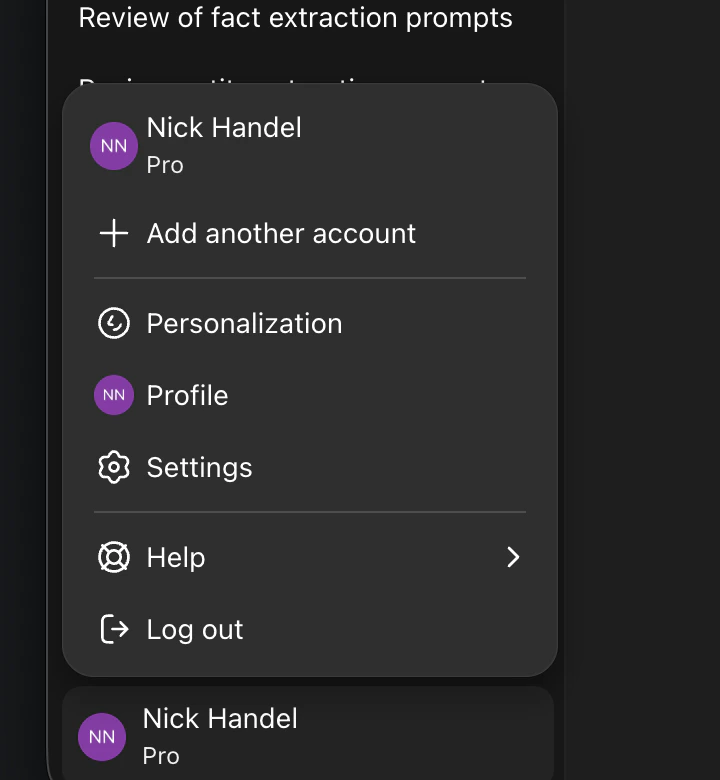
Click your profile icon in the bottom-left corner of ChatGPT, then select **Settings**.
Select Settings from the profile icon in the bottom left corner of the sidebar.
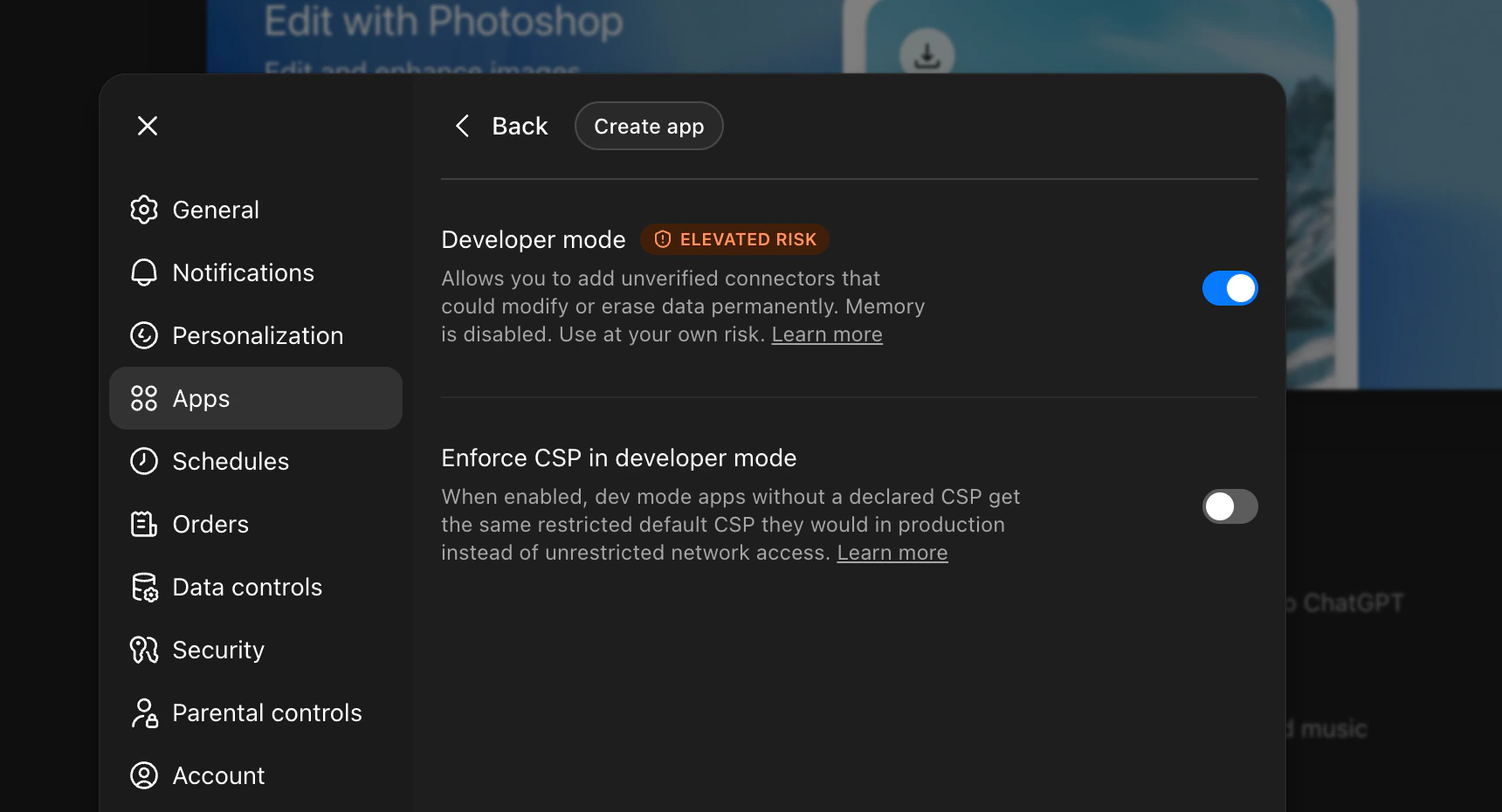
 Select **Apps**, **Advanced Settings** beneath your connected apps, and toggle on **Developer mode** to enable creating apps.
 Click **Create app** in the top navigation bar.
Fill in the following fields:
| Field | Value |
| ------------------ | ------------------------------ |
| **Name** | `Deal Brain` |
| **MCP Server URL** | `https://findtempo.co/api/mcp` |
| **Authentication** | `OAuth` |
You can copy these values directly from the **Connections** page in your Deal Brain settings.
Click **Create app** in the top navigation bar.
Fill in the following fields:
| Field | Value |
| ------------------ | ------------------------------ |
| **Name** | `Deal Brain` |
| **MCP Server URL** | `https://findtempo.co/api/mcp` |
| **Authentication** | `OAuth` |
You can copy these values directly from the **Connections** page in your Deal Brain settings.
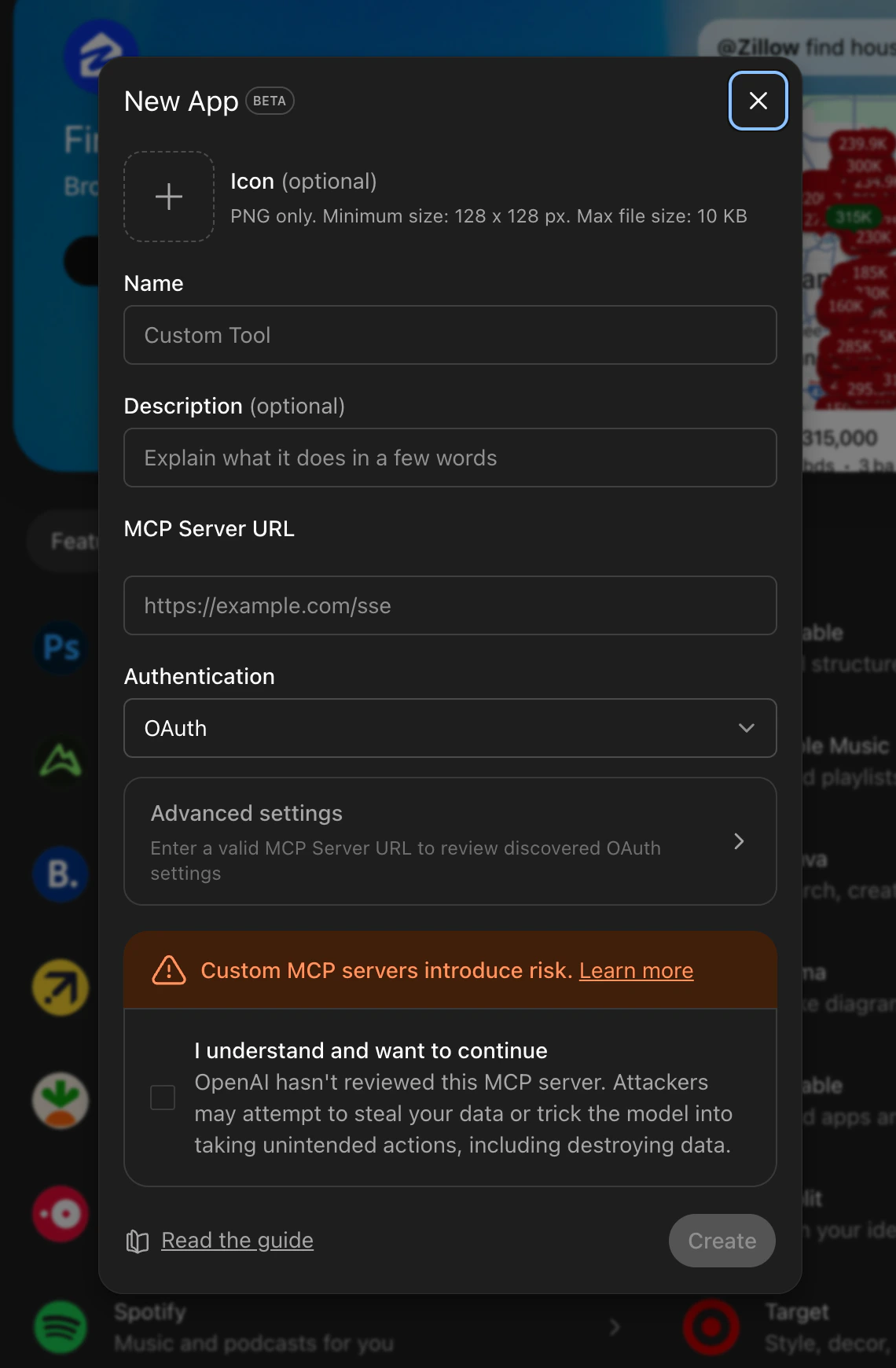 Check the acknowledgment box at the bottom, then click **Create**.
ChatGPT will redirect you to authenticate with your Deal Brain account. Sign in with your usual credentials.
Once connected, you can ask ChatGPT about your deals. Try prompts like:
* "What are my open deals?"
* "What did I promise we'd cover in my last meeting with Acme Corp?"
* "What are the key risks with Jaffle Inc?"
ChatGPT requires **Developer mode** to be enabled for MCP connections. This is a current ChatGPT requirement — keep it enabled for Deal Brain to work. We will work to remove this requirement soon.
Check the acknowledgment box at the bottom, then click **Create**.
ChatGPT will redirect you to authenticate with your Deal Brain account. Sign in with your usual credentials.
Once connected, you can ask ChatGPT about your deals. Try prompts like:
* "What are my open deals?"
* "What did I promise we'd cover in my last meeting with Acme Corp?"
* "What are the key risks with Jaffle Inc?"
ChatGPT requires **Developer mode** to be enabled for MCP connections. This is a current ChatGPT requirement — keep it enabled for Deal Brain to work. We will work to remove this requirement soon.